A Beginner’s Guide to Using Product Sliders in Your WooCommerce Store
Showcasing your products within your online store is super important and may attract more customers due to its visual appeal. Since all your products are competing for attention, it is necessary to organize them and also present them accordingly. To make that possible, you can use the WooCommerce Product Slider plugin.
With this guide, you will learn everything you need to know about how you can use a product slider within your online store. It doesn’t matter if you are new to this or if you are simply looking for a better method to display your best selling items. Through this guide, you will be able to create a very engaging and conversion friendly store friendly layout.
What is a WooCommerce Product Slider?
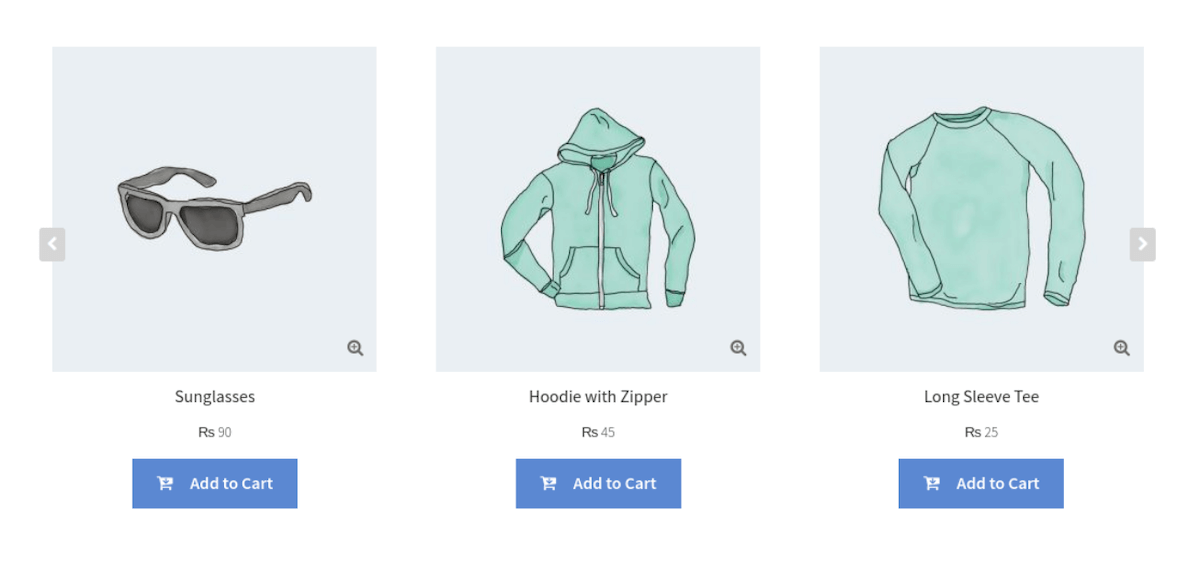
To put it simply, a WooCommerce Product Slider is a plugin that lets you display your products in a horizontal or carousel format (depending on your requirement). So rather than listing products in a typical old fashioned grid, the slider will allow you to create a display which is interactive and allows users to scroll through.
This plugin helps you make your store layout look cleaner and more up to date. With a product slider, customers can check out more items in less time without scrolling all the way down the page. It also lets store owners decide which products to show and how they appear across different sections.
Why Use a Product Slider in Your Store?
Here are some of the biggest advantages of using product sliders in a WooCommerce store:
1: Display Key Products
Use sliders to show top-performing or newly added items. You can group them by best-sellers, time-sensitive deals, or special promotions.
2: Make Browsing Easier
Customers can view several products in one place without switching between pages or scrolling too far. Sliders also adjust well on mobile screens.
3: Help Drive More Sales
A well-placed slider draws attention to products and can lead to more items being explored and added to cart. It supports better product visibility during browsing.
4: Keep Layout Clean
You can show more products without filling the entire page. Sliders manage space better and reduce clutter.
Getting Started with Product Sliders
To start using a WooCommerce Product Slider, install a plugin. One solid option is the Product Slider and Carousel for WooCommerce by Extendons. It doesn’t need coding and lets you control how products show and slide. Here's how to get it running.
Installing the Plugin
- Start by downloading the Product Slider and Carousel plugin from your WooCommerce dashboard.
- Next you have to go to Plugins > Add New and upload the ZIP file from your WordPress admin panel.
- Click Install Now, then activate the plugin.
Once activated, you’ll find a new Product Slider option under the WooCommerce menu.
Creating Your First Product Slider
After installation, head to WooCommerce > Product Slider in your admin dashboard.
Here, you can:
- Create multiple sliders.
- Give each slider a title.
- Configure settings such as autoplay, speed, and product order.
- Use shortcodes to place sliders anywhere on your website.
Every slider has its own shortcode. Just copy it and place it on any page or post where you want that slider to show.
Key Features of the Plugin
You get multiple cool features with this plugin, allowing you to create and customize your product displays.
1. Multiple Sliders
Create as many sliders as you want. A slider can be added to your homepage, your product page, and also a custom landing page. Each slider can display different products or categories.
2. Product and Category Filtering
You can display products based on a specific category as well as hand pick items individuals to display. This helps you showcase bestsellers, sale items, and new arrivals with ease.
3. Autoplay and Manual Controls
Set the slider to autoplay for a seamless experience, or allow customers to navigate manually. You can also configure the speed and time interval.
4. Responsive Design
By responsive, it means that the sliders work perfectly on desktops, tablets, and mainly mobile devices.
5. Loop and Rewind Options
Choose whether the slider should loop continuously or rewind to the beginning once it reaches the end.
6. Navigation Features
Enable mouse and touch drag so customers can easily swipe through products. You can also pause autoplay when users hover over a product.
7. Customization Options
You can adjust the number of products being displayed. The order can be sorted (e.g., by name, price, or popularity), and even the appearance of the "Add to Cart" button.
You can set the exact number of products you want to display by sorting the order
8. Conditional Visibility
Hide out-of-stock items or display only products that are currently on sale, helping you keep your promotions clean and relevant.
Best Practices for Using Product Sliders
To get the most out of your WooCommerce Product Slider, follow these best practices:
1. Use Descriptive Titles
Give each slider a name that reflects its purpose. For example: “Summer Sale Picks” or “Top Rated Electronics.”
2. Keep It Focused
Avoid overloading sliders with too many products. Keep each slider focused on a theme, such as “New Arrivals” or “Customer Favorites.”
3. Monitor Performance
Track how users interact with your sliders using tools like Google Analytics. This can help you understand which sliders are driving engagement and sales.
4. Place Strategically
Put sliders in visible and strategic locations like the homepage, product category pages, or even the checkout page for upselling.
5. Update Regularly
Rotate your slider content based on seasons, sales, and trends. This keeps your store fresh and engaging for repeat visitors.
Where to Display Sliders
You can use shortcodes to embed sliders virtually anywhere on your site. Here are some suggested locations:
- Homepage: Highlight new arrivals, trending items, or sale products.
- Category Pages: Show specific sliders for that category only.
- Product Pages: Cross-sell related or complementary products.
- Blog Posts: Include product sliders to promote featured items within content.
- Thank You Pages: Encourage additional purchases by displaying sliders after checkout.
Final Thoughts
With the right plugin and a clear plan, sliders can help you organize your layout and display top products better.
The Product Slider and Carousel for WooCommerce by Extendons gives you the tools to do that. It’s simple to set up, has lots of options, and fits both new and experienced store owners.
Start building your own sliders now and see how they shape your store’s product flow.