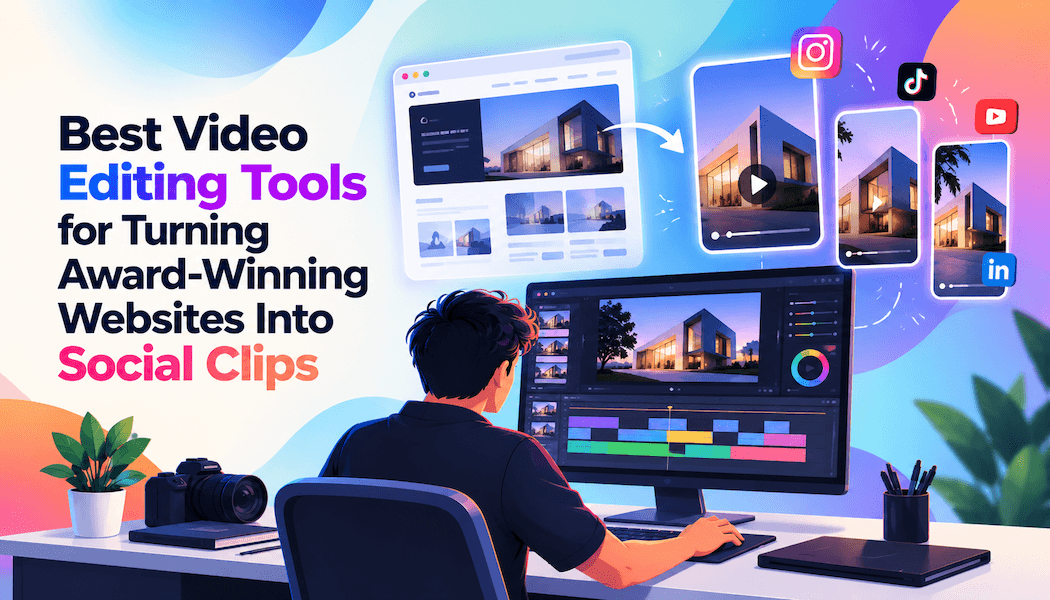
Best Video Editing Tools for Turning Award-Winning Websites Into Social Clips
A social clip is a short video cut from a longer recording and sized for a feed such as Reels, Shorts, or TikTok. For an award-winning website, the source material is usually a screen recording of the scroll, the hover states, and the page transitions. The right editing tool turns that recording into a clip people will watch.
Award sites win on motion and interaction, so the clip must show both clearly. The tool also has to reframe a wide desktop recording into a vertical frame. Captions, pacing, and export quality then decide whether the clip feels finished.
This guide compares six tools for that job. Each entry names a best use, a real limitation, and current pricing. Prices were checked in September 2026 and can vary by region.
How were these video editing tools chosen?
Five criteria shaped the list. Each one reflects a step in turning a website recording into a clip.
- Recording polish: how well raw screen capture looks after zooms and cursor cleanup.
- Vertical reframing: how easily a wide recording becomes a 9:16 clip.
- how quickly on-screen text can be added to a silent or spoken clip.
- Version output: how many platform cuts one project can produce.
- free options, subscription terms, and price steps between plans.
No tool leads on every criterion. Some tools capture the site well. Others cut and version clips faster. The entries below show where each one fits.
Which video editing tools compare best for website social clips?
| Tool | Best for | Key feature | Starting price |
| Invideo Editor | Many platform versions from one project | Cut-downs and versioning on a cloud timeline | $20/month for agent access |
| CapCut | Fast vertical cuts with captions | Templates and AI captions | Free |
| Screen Studio | Polished website recordings on Mac | Automatic zoom and cursor smoothing | $9/month billed annually |
| Descript | Clips with spoken walkthroughs | Transcript-based editing | Free |
| Canva | Designers already working in Canva | Brand Kits and Magic Resize | Free |
| Adobe Premiere Pro | Agencies standardized on Adobe | Auto Reframe and Creative Cloud links | $22.99/month |
1. Invideo Editor: Cut-Downs, Captions, and Review Links on a Cloud Timeline
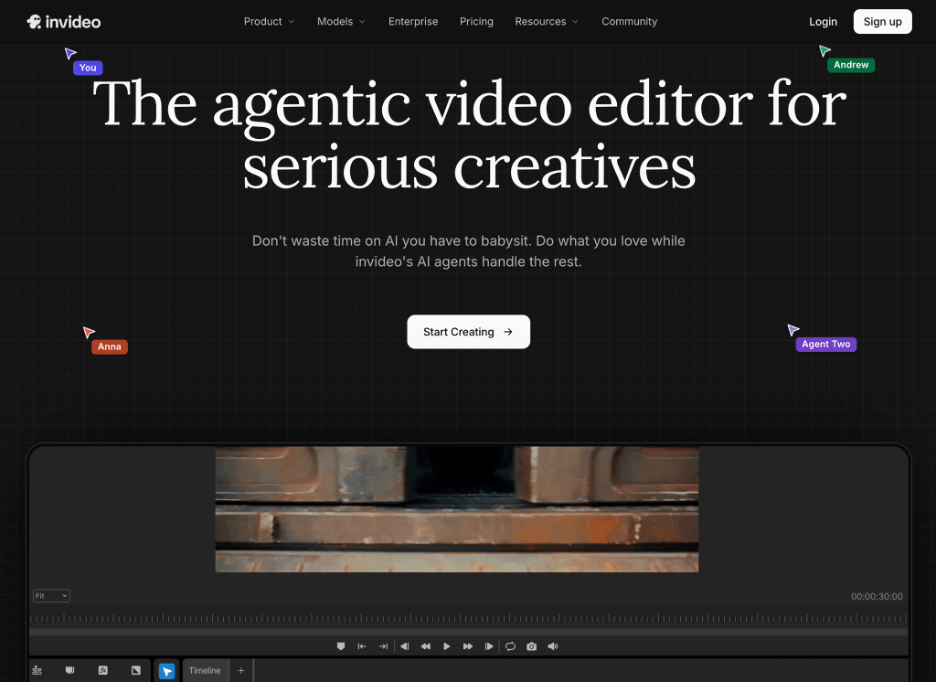
Invideo Editor turns one finished project into platform-specific cuts. Trailers, highlights, and social versions all come from the same timeline.
An AI video editor can reframe a 16:9 recording into 9:16 while keeping the main subject in frame. Agents can also restructure a sequence or cut it to length from plain-language direction.
Titles and dynamic captions sit on that same timeline. The agents can pull commercially cleared clips and music from iStock, Shutterstock, and Storyblocks.
Reviewers open a shareable link and scrub the cut in a browser. They can leave frame-accurate comments there. Agents can then act on those notes.
Best for: Agencies that need many platform versions of one site walkthrough.
Where it falls short: It cannot import existing Premiere Pro, Final Cut Pro, or DaVinci Resolve projects. Full agent access needs a higher paid tier.
Pricing: Starts at $20/month on the Starter plan for limited agent access. It scales up to $375/month on the Max 3x plan. The manual timeline is free to use even if you never assign a single task to an agent.
2. CapCut: Templates and AI Captions for Fast Vertical Cuts
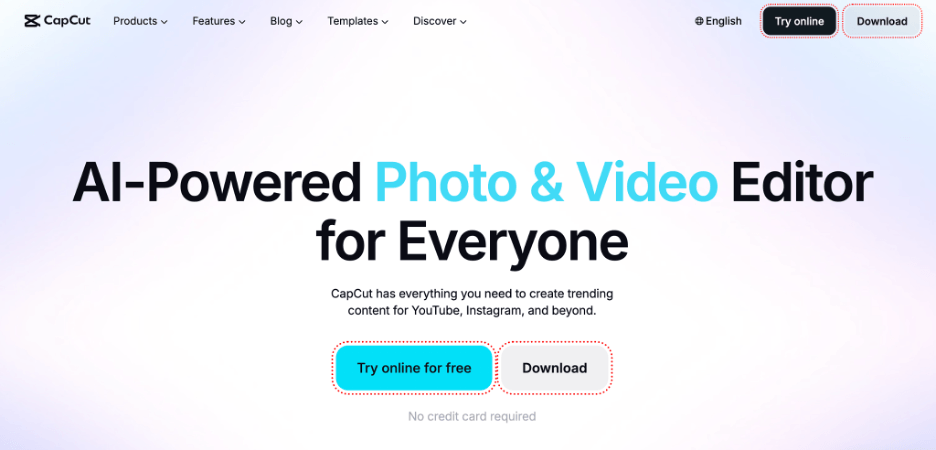
CapCut is built for short vertical video. Its template library gives a site recording a ready-made structure.
The editor offers a multi-track timeline with keyframe animation. Pro adds 4K and HDR export, plus the full effects and transitions library. Free exports top out at 1080p.
AI captions add on-screen text in a few taps. That helps when a clip needs a headline or a credit line. Chroma key and basic stabilization are also included for cleaner footage.
Best for: Designers who need quick vertical cuts with captions.
Where it falls short: Pro pricing rose to $19.99/month in 2026, up from about $9.99. Long-time users were surprised by the change.
Pricing: Starts free, with a Standard plan at $9.99/month. It scales up to $19.99/month on the Pro plan.
3. Screen Studio: Automatic Zoom and Cursor Smoothing for Website Recordings
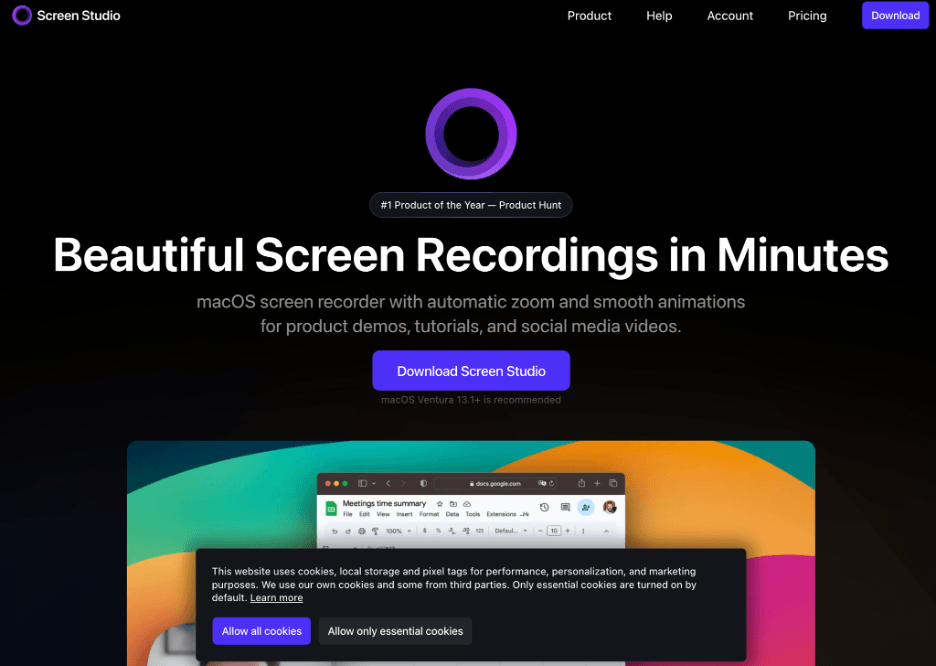
Screen Studio is a macOS recorder that turns clicks and cursor movement into animated zooms. It also smooths shaky cursor motion into a clean glide. Zooms arrive on their own, with no manual keyframing.
After recording, you can adjust zooms, cuts, speed, captions, and backgrounds. Switching between horizontal and vertical formats recalculates the zoom framing.
Backgrounds, padding, and rounded corners frame the site inside a clean canvas. Exports reach 4K at 60 fps. Keyboard shortcut overlays can also label the interactions a site relies on.
Best for: Designers capturing scroll and hover interactions from a live site.
Where it falls short: It runs only on macOS. Its streamlined timeline does not replace a full editor for complex projects.
Pricing: Starts at $9/month billed annually, which totals $108 per year. Month-to-month billing costs $29/month.
4. Descript: Transcript-Based Editing for Clips With Voiceover
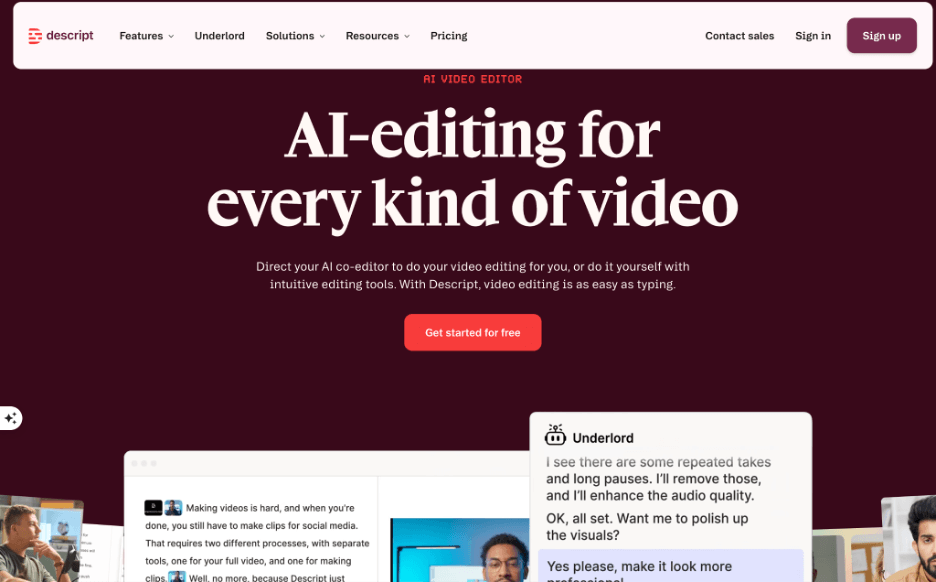
Descript edits video by changing the transcript, much like editing a document. That suits clips where a designer explains the site aloud.
Filler-word removal and Studio Sound are included on paid plans. Creator and Business add 4K exports. The Hobbyist tier also bundles Overdub voice cloning.
Silence removal and captions help shrink a long recording into a tight short clip. The result is faster than scrubbing a timeline by hand. Deleting a sentence in the transcript removes the matching footage.
Best for: Teams whose site clips rely on spoken explanation.
Where it falls short: The free plan adds watermarks to exports. Media hours and AI credits are metered separately on paid plans.
Pricing: Starts free with watermarked exports. Paid plans begin at $16/month billed annually. They scale up to $50/month on the Business plan.
5. Canva: Brand Kits and Templates for Designers Already Using Canva
Canva combines a drag-and-drop editor with more than a million templates. Video exports to MP4 alongside other formats. The free plan includes a large library of templates, photos, and elements.
Magic Resize converts one design into other formats. Pro includes five Brand Kits, which keep colors and fonts consistent across clips.
Real-time collaboration lets teammates work in the same file. That suits a small studio posting site wins each week. Exports also cover PNG, JPG, and GIF for stills and loops.
Best for: Designers who already build social posts in Canva.
Where it falls short: Magic Resize and Background Remover sit behind Pro. Pro is a single-person license, so a second user moves the account to Business billing.
Pricing: Starts free with 5 GB of storage. Canva Pro costs $18/month, or $144/year. It scales up to $25 per user per month on the Business plan.
6. Adobe Premiere Pro: Auto Reframe and Creative Cloud Links for Agency Workflows
Adobe Premiere Pro is a full timeline editor for teams with multi-format output needs. Auto Reframe tracks the main subject when a widescreen clip becomes vertical.
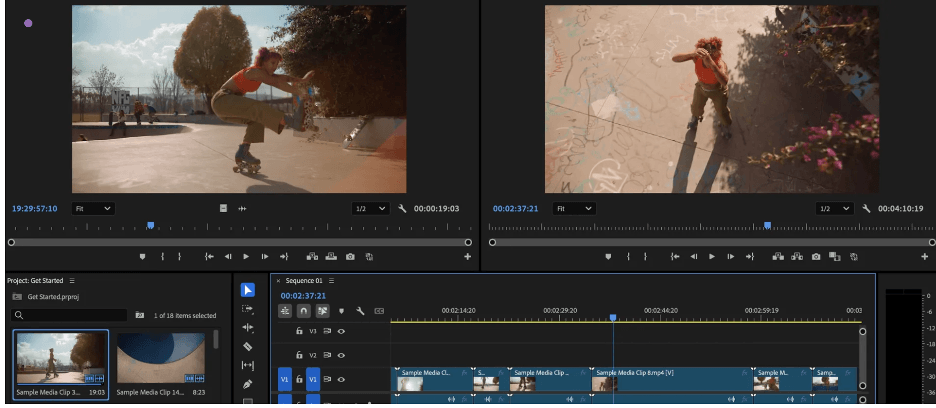
Speech-to-text supports captions in the same project. Frame.io review tools come bundled with the plan. Clients can comment on a cut without leaving the review link.
Motion graphics templates handle animated titles. Projects link to After Effects when a clip needs heavier animation. Media Intelligence search helps locate clips by what they show.
Best for: Agencies already standardized on Adobe.
Where it falls short: It has no permanent free plan. A free trial lasts seven days.
Pricing: Starts at $22.99/month on the annual plan billed monthly. It scales up to $69.99/month on Creative Cloud Pro for the wider Adobe app set.
Which video editing tool should you use for website social clips?
- Many platform versions from one project → invideo Editor.
- Fast vertical cuts with captions → CapCut.
- Polished recordings of a live site on Mac → Screen Studio.
- Clips built around spoken explanation → Descript.
- Social posts inside an existing Canva workflow → Canva.
- Agency workflow on Adobe → Adobe Premiere Pro.
Frequently asked questions
What is the best video editing tool for turning a website into social clips?
There is no single winner. For many platform versions from one project, invideo Editor is the fit. Screen Studio suits polished recordings on a Mac. CapCut suits fast vertical cuts.
How do you record an award-winning website for a social clip?
Record the scroll, the hover states, and the page transitions at full resolution. Screen Studio adds automatic zooms and cursor smoothing on a Mac. Any timeline editor can then cut vertical versions.
Can I make vertical and horizontal versions of the same clip?
Yes. Screen Studio switches between horizontal and vertical formats. Invideo Editor reframes 16:9 video into 9:16 and builds platform-specific versions from one project. Premiere Pro uses Auto Reframe to follow the main subject.
Which of these tools are free?
CapCut, Descript, and Canva all have free plans. The manual timeline in invideo Editor is also free to use even if you never assign an agent a task. Screen Studio and Premiere Pro are paid tools.
How much do these video editing tools cost?
Costs range from free on CapCut, Descript, and Canva to $9/month billed annually on Screen Studio. Adobe Premiere Pro starts at $22.99/month on annual plans. Prices vary by region and change over time.