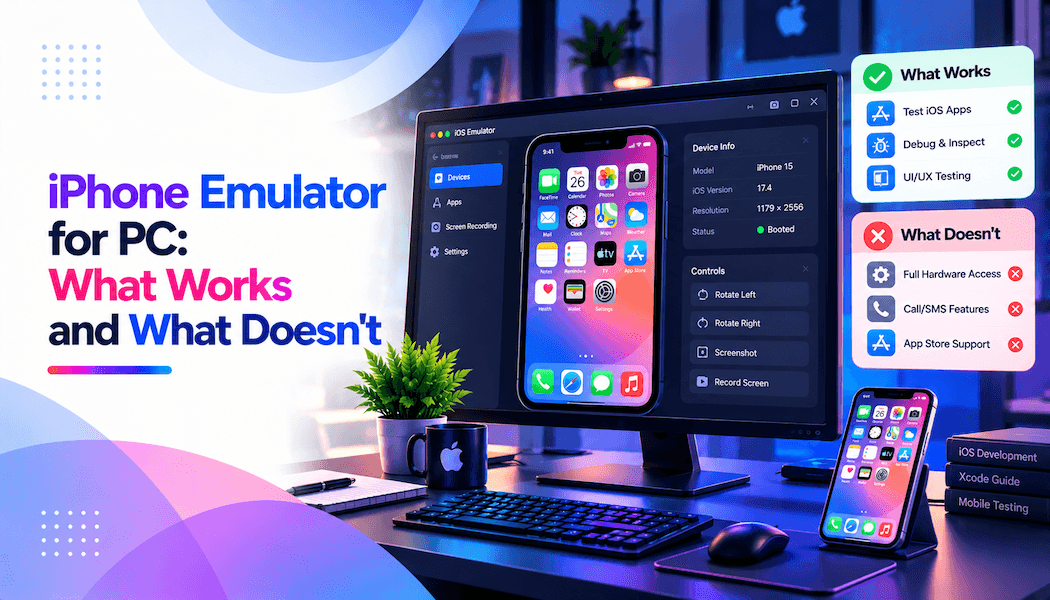
iPhone Emulator for PC: What Works and What Doesn't
iPhone emulation on PCs is not something new. Developers, testers, and QA teams have been using an iPhone emulator for PC for years to test iOS apps without needing actual iPhones or iPads. It reduces device costs, saves time during the early stages of testing, and helps teams build and deploy applications more efficiently.
Cloud-based iPhone emulator for PC solutions are especially popular because they provide instant access to multiple iPhone models, remove the burden of managing physical devices, support testing from anywhere, integrate with existing development workflows, and scale well for both small teams and enterprises.
What Is an iPhone Emulator for PC?
An iPhone emulator for PC is a program or service that copies how an iPhone looks and behaves, so you can run iOS apps on a Windows computer. It does not turn your PC into an actual iPhone. Instead, it builds a screen and a set of controls that act close to what you would see on real Apple hardware.
App developers, QA teams, and regular users who want to try iOS apps without owning an iPhone mainly use these tools. Some emulators are full simulators built into developer software, while others are simple downloadable apps made for everyday use. The level of detail and accuracy can vary widely depending on the type you choose.
What Works With iPhone Emulators on PC?
iPhone emulators are good at certain jobs, especially when the task does not need real iPhone hardware. Below are the main areas where they work well.
- Website Layout and Responsive UI Testing: If you are checking how a website looks on an iPhone screen, an emulator works fine for this. It can show you how your site adjusts to a smaller screen, how buttons line up, and how text wraps. Since this kind of testing depends mostly on screen size and browser rendering, an emulator gives results close to what a real device would show. Teams that build or maintain websites often use this method to catch layout problems early, before the site goes live.
- Android Cross-Play Alternatives: Some games and apps are built for both Android and iOS, but a person may only own an Android phone. An iPhone emulator lets them open the iOS version on their PC and still join the same game or service as their friends. This is common with games that have cross-play features, where players on different operating systems can connect to the same servers and matches.
- Enterprise Security Auditing: Companies that build apps often need to check them for safety problems before release. Security teams can use an emulator to test how an app handles data, logins, and permissions in a controlled setup. Since the emulator runs on a regular computer, it is easier to monitor and record what happens during testing, which helps when writing reports for compliance or internal review.
- Mimicking the Visual Aesthetic: Some iOS emulators are used solely to replicate the iPhone interface. They replicate elements, giving users a general idea of how iOS looks and feels. This can be useful for demonstrations, presentations, interface comparisons, or users who want to explore the iOS design without purchasing an Apple device.
What Doesn't Work With iPhone Emulators on PC?
While emulators are useful in many cases, they have real limits. These limits come from the fact that a PC is not built the same way as Apple hardware, so some things simply cannot be copied.
- Running iOS Games Natively from IPA Files: Many people hope they can take an IPA file, which is the install file for iOS apps, and run it directly on a PC like an EXE file. This does not work well in most cases. iOS apps are built using Apple's own system and processor design, so they need a layer that translates the app's instructions into something the PC can understand. This translation often causes bugs, missing features, or apps that fail to open at all.
- App Store Won't Work at All: You can't download apps from the App Store through an emulator. Instead, you have to sideload .ipa files manually. This means you need developer certificates and provisioning profiles just to get an app running. Most emulators only accept custom or test builds. So if you want to install a real app from the store, you're stuck. You can't test how your app works with other actual apps either.
- Your Computer's Hardware Doesn't Match an iPhone: An iPhone has its own CPU, GPU, battery system, and cooling setup. Your PC has completely different hardware. When you run an app in an emulator, the performance numbers you see are fake. An app might run fine in the emulator, but lag badly on a real iPhone. Battery drain won't show up the same way. Thermal behavior is different, too. If you're testing optimization or trying to see if your app runs smoothly, the emulator lies to you.
- Hardware Features Don't Actually Work: Push notifications arrive late or don't arrive at all. Real cellular networks and carrier behavior can't be replicated. SIM-specific features just don't exist in an emulator. The network conditions aren't real. If your app uses any of this stuff, you're testing on something fake.
- Apps Break and Won't Run: Games that use Metal graphics often crash. Apps with DRM or anti-emulation checks detect that they're running in an emulator and refuse to launch. Production apps that work fine on real iPhones frequently crash in emulators because they don't have full fidelity. The emulator doesn't reproduce what a real device does.
- iOS Version Support Lags Behind: New iOS versions take time to get supported in emulators. You can't test new iOS features right away. There's always a delay.
- Apple's Terms Get Messy: Running iOS on PC hardware can break Apple's licensing agreements. Emulating iOS at a low level is legally restricted. Check the terms before using anything for work.
How to Use iPhone Emulators for PCs?
Now that we know what works and what doesn't, let's go through each of these strategies.
1. Cloud-Based iOS Emulator
One of the simplest and most convenient solutions for running iPhone apps on Windows is to use a cloud-based iOS emulator. This approach lets users run iOS apps on the Windows platform without any installation.
The cloud-based emulator service provider takes care of the resource requirements for running applications. As the processing needs scale up or down, emulation resources are allocated accordingly. The provider also handles storage and maintenance of the application.
A major advantage of cloud-based emulators is that you avoid buying, setting up, and maintaining multiple iOS devices.
Platforms such as TestMu AI (formerly LambdaTest), an AI-native end-to-end cloud testing platform, support both manual and automated testing across 3,000+ browser environments and 10,000+ real devices. It provides cloud-based iOS simulators and access to real iPhones, allowing developers and QA teams to validate iOS applications from Windows, macOS, or Linux without maintaining their own device lab.
Here are the core features of TestMu AI:
- 500+ Emulator Configurations: Access a broad range of Android emulator setups covering different Android versions, screen sizes, and hardware profiles.
- Real Device Cloud: Access 10,000+ real Android and iOS devices for both manual and automated mobile app testing without any physical device setup.
- HyperExecute: A smart test orchestration platform that distributes test execution across machines to cut overall test run time significantly.
- AI Native Testing Platform: It includes AI-based testing workflows and agent-driven testing capabilities for modern QA setups.
- Intelligent UI Inspection: Advanced UI inspection helps identify elements and fix issues faster in complex apps.
- Accessibility Testing Built In: It checks accessibility issues like contrast, text readability, and WCAG compliance.
- Private Device Cloud: You can get dedicated devices with full control and security inside your own network.
- Geolocation Testing: Change the device location to different countries and regions to verify that location-based features and region-specific content work correctly.
- Real-Time Manual Testing: Interact with a real physical device live through the browser, with instant access to device logs, screenshots, and touch simulation.
- Visual Regression Testing: Compare screenshots across builds to automatically catch unintended UI changes before they reach users.
- Smart CI/CD Integrations: Connect with GitHub Actions, GitLab CI, Jenkins, CircleCI, and other popular pipelines to trigger test runs on every build.
2. Integrated Development Environment
If your work involves developing or testing native iOS applications, an IDE with a built-in iPhone simulator is a good choice. Xcode, for example, provides everything needed to build, run, and debug applications from a single environment without additional third-party tools.
Xcode is Apple's official IDE for building, testing, and debugging iOS applications. After creating an Xcode project, you can launch an iOS Simulator directly from the development environment.
Follow these steps for testing applications using Xcode's iPhone simulator on Windows:
- Launch Xcode and start your project.
- Once you are ready with the code, go to the Run Destination menu in the toolbar.
- Choose between real device testing and an iOS simulator for testing your app.
- If you choose to use Xcode's built-in simulator, select the devices you want to proceed with.
- To test your app on an iPhone, choose from all iPhone versions, and similarly for iPad if you want to test on tablets.
- If you choose to test using a real iOS device, make sure it is plugged into the system that is running Xcode.
Please note that Xcode is for developers and testers building and validating iOS apps. It is not designed for end users who simply want to run iOS apps, and it cannot be used for iOS simulation on Windows.
3. Installing iOS Emulator as a Native Application
Another approach is to install an application that recreates the look and feel of iOS on Windows. Although these tools are often described as an iPhone emulator for PC, they are generally designed to simulate the iOS interface rather than run native iPhone applications.
One of the best-known tools in this category is iPadian. It recreates the look and feel of iOS on Windows and provides access to supported applications through its own environment. Users can download the software, install it on Windows, and explore an iOS-style experience.
People who choose iPadian or similar software are usually looking for an iOS-like interface, not a development or testing platform. If you want to explore the appearance of iOS without owning an iPhone or iPad, iPadian can be a suitable option.
Even so, it does not deliver the same experience as a physical Apple device. The user interface, supported features, and application availability differ from those found on an actual iPhone or iPad.
Conclusion
An iPhone emulator for PC handles website layout checks, security audits, and interface previews well, but real Apple hardware still matters for native IPA execution, accurate performance numbers, and anything tied to push notifications, cellular behavior, or anti-emulation checks.
A cloud-based approach works best for most testing needs, while Xcode remains the right pick for native development work. Visit TestMu AI (formerly LambdaTest) to run a live iOS session and see how your app actually performs.