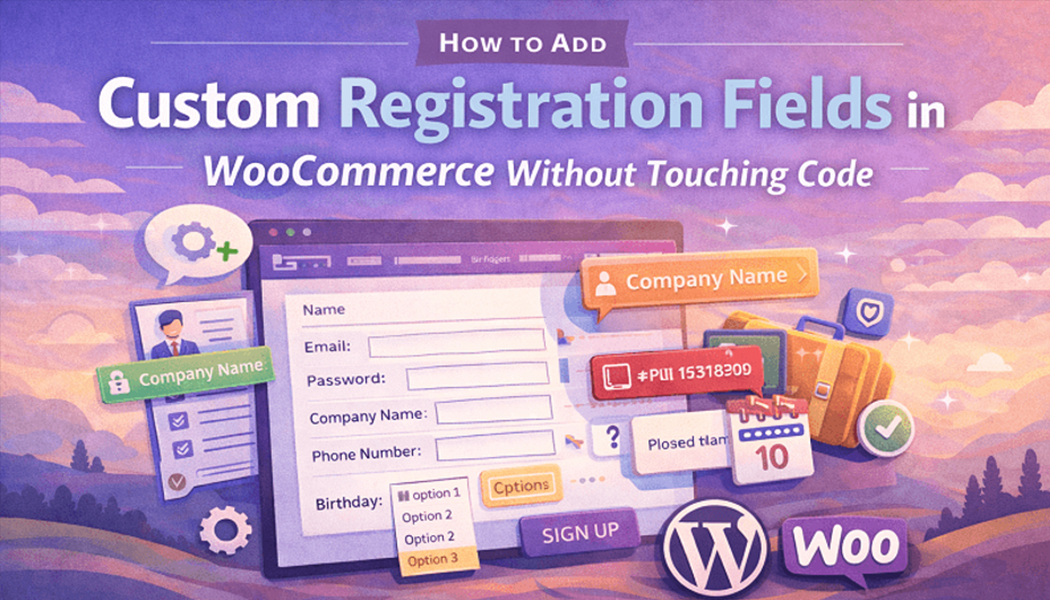
How to Add Custom Registration Fields in WooCommerce Without Touching Code
Registration forms can be super daunting, especially if you are trying to customize one for one of your WooCommerce stores. So many options to set and setting them accordingly to user roles is a task of its own. Pair that with the fact that you have to work with code? That is a challenge of its own.
For most store owners, the more customer information they get, the merrier. Although this is super helpful, doing so requires most to mess around with PHP files as well as theme templates, which isn’t very desirable. But the good news is that they can achieve this with the help of a WooCommerce registration form plugin.
So instead of working on adding each and every field individually, you can now just do a speed run on your entire registration form. A plugin is exactly how you add fields and manage them from your dashboard with ease. No more codes required!
So let’s find out what you need to do below.
Why Adding Custom Fields Matters
If you are a store owner who is wondering why it is so important to gather extra information at signup, well, there isn’t just one, but many reasons you might need to do so. Firstly, you want to know what type of business your customer is running, then the products they prefer, and on a side note, you might want things like their birth date or country name as well.
This really depends on your store requirements and what fits best. Either way, all this customer data will greatly benefit you in the end. With such information, you can perform market segmenting, create personalized offers, or just provide your customers with a better store experience, your pick!
Sure, you might get a standard WooCommerce registration form, but with that, all you can collect are things like their name, email, or password. Although it is enough to create an account, it is pretty limited for someone who is looking to customize their store based on their customers.
For actual important data, you need a user registration for WooCommerce plugin, which will truly help you.
Choosing the Right Plugin
Not all plugins are created equal. You need something that lets you add text boxes, dropdowns, checkboxes, or even file uploads easily. The plugin should allow you to make some fields optional and others mandatory depending on your workflow.
For example, a store selling custom products may require the customer’s company name and tax number for wholesale accounts, but for normal shoppers, these fields are unnecessary. A plugin like the one from Extendons gives you these options. You can configure fields, order them, and decide where they appear on the registration form without worrying about coding conflicts.
How to Add Custom Fields Step by Step
Once you have installed the plugin, you can start adding fields. First, go to the plugin settings and choose the type of field you want. It can be a text, dropdown, radio button, checkbox, or date picker. Each field can have a label placeholder and a description if needed.
Next, decide if the field is required. Required fields make sure the user cannot register without filling in important information. Optional fields give flexibility when information is not critical. Then arrange the fields in the order you want them to appear on the registration form.
After saving changes, the fields will automatically appear on the WooCommerce registration form. You can test it by opening the registration page in a new browser window or using an incognito tab. Try filling it out to see how it looks from the user’s perspective.
Displaying Custom Fields in User Profiles
Adding fields to the registration form is only part of the process. You also want to see the information once a user signs up. The plugin usually adds a section in the user’s profile page in the WordPress dashboard. Here you can view, edit, or export information collected from custom fields.
This is particularly useful if you need to sort users by a certain attribute or create special groups for marketing purposes. For instance, you might want to tag users who selected a specific product interest on signup to send them relevant updates or offers.
Benefits Beyond Extra Data
Custom registration fields do not just give more information; they improve workflow. You can avoid unnecessary follow-up emails asking for extra details later. You can guide users to specific content or product categories based on their selections. It helps create a personalized experience right from the start.
Using a WooCommerce registration form plugin also reduces errors. Manual processes like emailing users or creating separate forms can lead to mistakes. Automated fields ensure consistency, and all collected data is stored neatly in one place.
Testing and Maintenance
After adding fields, it is a good idea to test the signup process yourself and also ask a few colleagues or friends to register. This helps identify any confusing field labels, misplaced options, or technical glitches.
Maintenance is simple with a plugin. If you want to remove a field or add new ones later, it is just a few clicks. You can also track which fields are most filled or ignored to optimize your registration form over time.
Conclusion
For most successful store owners of today, adding custom fields to their registration form is a hassle no more. They know time is money, and they save it using a plugin like the WooCommerce registration form without giving it a second thought. As long as you pick the right plugin, you will easily be able to collect the information you require, display it in user profiles, and just make the overall registration experience better.
There are many plugins out there to choose from; you can aim for some of the top ones, like those of Extendons, WordPress, or Addify. Most of these plugins provide you with simple fields that collect phone numbers, all the way to the advanced ones that collect product preferences or company-related data. And once again, you won’t even have to think about dealing with code anymore. The plugin does that for you.
A user registration for WooCommerce plugin, like this, helps save time, improves data collection, and gives a professional look to your store while keeping things simple for both you and your customers.