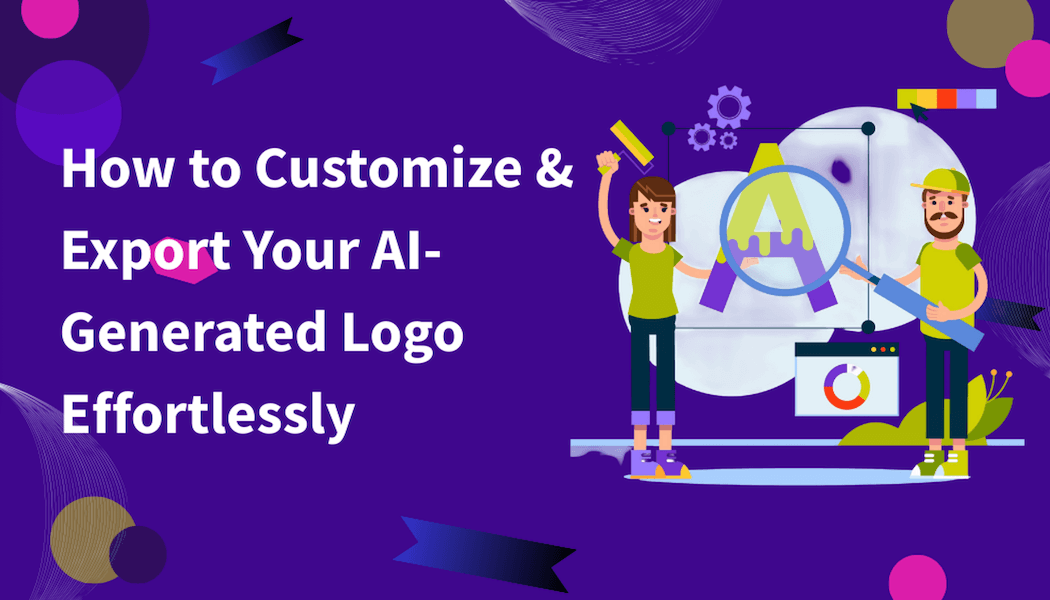
How to Customize and Export Your AI-Generated Logo Effortlessly
Your logo is what people notice first. It gives them a quick judgment about your brand.
In the past, logos were a long process (hire a designer, review draft after draft, wait weeks). Frustrating, right?
Now?
Much easier. AI tools let you design polished logos in minutes, not weeks.
What’s next after generating the logo?
Customizing & exporting!
This guide shows you exactly how to tweak your logo & prepare it for websites, socials, & marketing use.
4 Steps to Personalizing & Exporting Your AI-Crafted Logo
1. Customize Your AI-Generated Logo
The process doesn’t end once the AI gives you a logo; you need to customize it so it reflects your brand.
AI helps you get started, but you shouldn’t settle for something generic. Your business should stand out with its own look. Here is a list of the most important parts of the logo to customize:
✔ Colors
Colors play a huge role in branding. Choose them based on feelings, not just appearance. For example, blue often conveys trust & professionalism. Green is linked to health & progress. An AI logo generator lets you experiment with different color palettes. So, pick colors that match your brand’s vibe & work everywhere (online & offline).
✔ Fonts
Fonts communicate style & personality. Experiment until you find the perfect font for your logo. Remember, it should stay clear on small screens & large displays.
✔ Icons & Symbols
Most AI logo generators suggest icons related to your industry. While these can be helpful, don’t hesitate to replace them. Custom icons give your brand a unique identity. Avoid adding too many details. Simple is stronger.
✔ Layout
Different layouts work for different uses. Experiment with them to find the one that looks good everywhere.
✔ Overall Balance
Now is the time to look at your personalized logo. Is it visually pleasing? Is there too much empty space?
When all elements feel right, your brand looks polished & credible.
2. Preview Your Logo Before Exporting
Take a pause before exporting.
Look at how your logo appears in real-life situations (business cards, websites, even T-shirts).
Most AI logo makers show you these previews so you can spot issues early. Ask yourself:
- Does it look sharp & professional on light & dark backgrounds?
- Can it shrink & still keep its details?
- Will it still work in black & white?
Small check. Big payoff. Because skipping this step is risky.
These previews save you from unpleasant surprises when your logo appears everywhere.
3. Export Your AI-Generated Logo
You’ve finished your logo & like how it looks. It’s time to save it in the right file type.
● File Formats
Let’s look at the most common file types:
✅ PNG
PNG works great online. It keeps backgrounds clear, that is perfect for websites & posts.
✅ JPG
Need something quick for basic online use? JPG does the job.
✅ SVG
SVG is your go-to for anything that needs resizing. Crisp & clean at any size.
✅ PDF
This format is ideal for professional printing & sending files around.
● Resolution
Pick high-resolution files. Why settle for blurry logos?
Low-res designs break apart when enlarged. AI tools give you choices (standard or high-resolution). Go with high-res for a great finish.
● Variations
Export several versions of your logo. Full-color, black & white, icon-only, text-only. It helps you keep the branding consistent across platforms because one size doesn’t fit all.
4. Organize & Store Your Logo Files
After exporting, don’t just leave your files scattered on your desktop. Create a folder specifically for your brand assets.
Organize your logos by format & version. Separate PNG, JPG, & SVG. Label old & new versions.
This step will save you time. Whenever you need to update a website, print business cards, or create social media graphics, your logo will be easy to find.
Last but not least, back up that folder on cloud storage. This keeps your files safe if your computer crashes. You can also share that folder with teammates. No confusion.
Best Practices for a Professional Look
Want your AI-crafted logo to actually stand out? Here’s how to give it a polished, professional feel without overcomplicating things.
✔ Keep Your Design Simple & Clean
Complicated logos are hard to remember. A messy look can confuse your audience. Fewer elements. More impact. Simple shapes & balanced spacing make your design easier to recognize at first glance.
✔ Avoid Using Too Many Colors or Fonts
Too many choices create confusion. Stick to two or three colors that fit your brand personality & just one or two fonts that work well together. This keeps the design easy on the eyes & stops it from looking amateurish.
✔ Ensure the Logo Remains Recognizable When Resized
Logos don’t just live on websites. They appear on social media, packaging, business cards, & even tiny app icons. If it’s too detailed, those small versions become blurry or unreadable. Test it at different sizes to check if it still looks good.
✔ Stick with consistent branding across all channels
Your logo should look the same everywhere (your website, emails, social profiles, & ads). This builds trust & familiarity over time. People start connecting the logo with your business without even thinking about it.
Remember, your logo is the face of your business. A strong, consistent logo makes your brand feel reliable & professional. Over time, that recognition turns into trust.
Final Remarks
Creating a logo doesn’t have to drain your time or wallet. AI tools make the process smooth.
Just spend a few minutes tweaking colors, fonts, icons & layout to make your logo unique & appealing.
And don’t forget to export it in the right file formats. This way you can make sure it’s ready for your site, social profiles & even print materials.
Why stick with boring designs?
You can design a logo that feels personal & professional — one that truly stands out.
So, try an AI logo generator today, tweak it until it feels right & download it without stress.
Your brand deserves more than a basic design. It deserves a visual identity that speaks for you.